Are you looking to take your ClickUp tables and work with them directly in Excel? Whether you want to analyze your data, create custom reports, or simply have an offline backup, exporting tables from ClickUp to Excel is easier than you might think.
Imagine having all your project info neatly organized in a spreadsheet, ready to be sorted, filtered, and shared exactly how you want. In this guide, you’ll learn simple, step-by-step methods to export your tables from ClickUp quickly and efficiently—no tech headaches involved. Plus, if you want to supercharge your productivity by managing everything in one place, check out ClickUp, the all-in-one platform that replaces every app, AI agent, and tool you use. Ready to turn your ClickUp data into Excel magic? Let’s dive in!

Credit: blog.coupler.io
Introduction To Exporting Tables From Clickup To Excel
Exporting tables from ClickUp to Excel is a simple process. It helps you work with your data outside ClickUp. You can analyze, share, or back up your information easily. This section explains the basics of exporting tables and why it is useful.
Overview Of Clickup And Its Table Views
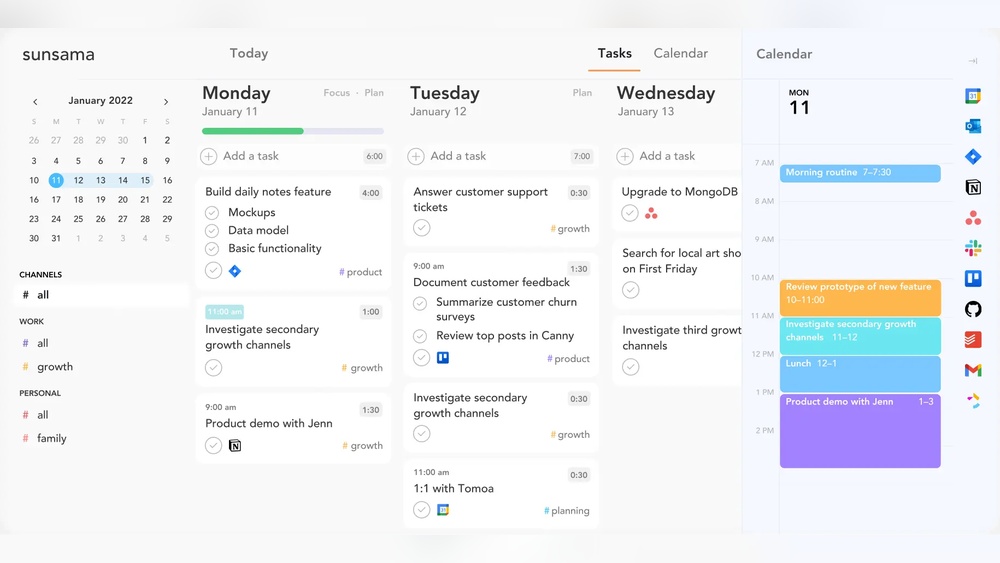
ClickUp is a productivity platform that combines tasks, docs, and goals in one place. It offers various views to manage your work efficiently. One of the popular views is the Table View. This view displays tasks and data in rows and columns, like a spreadsheet.
The Table View helps you see detailed information clearly. You can sort, filter, and customize columns to fit your needs. This makes it easier to organize your projects and tasks.
Why Exporting Tables To Excel Is Useful
Exporting tables to Excel provides several benefits:
- Data Analysis: Excel offers powerful tools to analyze and visualize data.
- Offline Access: You can access your data without an internet connection.
- Sharing: Excel files are easy to share with colleagues or clients.
- Backup: Exporting creates a backup copy of your data outside ClickUp.
- Custom Reports: You can build reports tailored to your needs.
Common Scenarios For Exporting Data
Exporting ClickUp tables to Excel fits many situations, such as:
- Preparing detailed reports for meetings or presentations.
- Importing data into other software or systems.
- Tracking project progress with custom charts.
- Sharing task lists with team members who don’t use ClickUp.
- Performing advanced data analysis outside ClickUp.
Each scenario benefits from Excel’s flexibility and widespread use.

Credit: clickup.com
Step-by-step Guide To Exporting A Table From Clickup To Excel
Exporting a table from ClickUp to Excel helps you work with your data offline or share it easily. Follow these simple steps to export your tables quickly and accurately.
Navigating To The Desired List Or Table View
Start by opening ClickUp and going to the workspace where your data is stored.
- Find the specific List or Table view you want to export.
- Click on the task list or table to make sure it is active.
This step ensures you export the exact data you need.
Accessing The Export Options In Clickup
Look to the top-right corner of your table or list view.
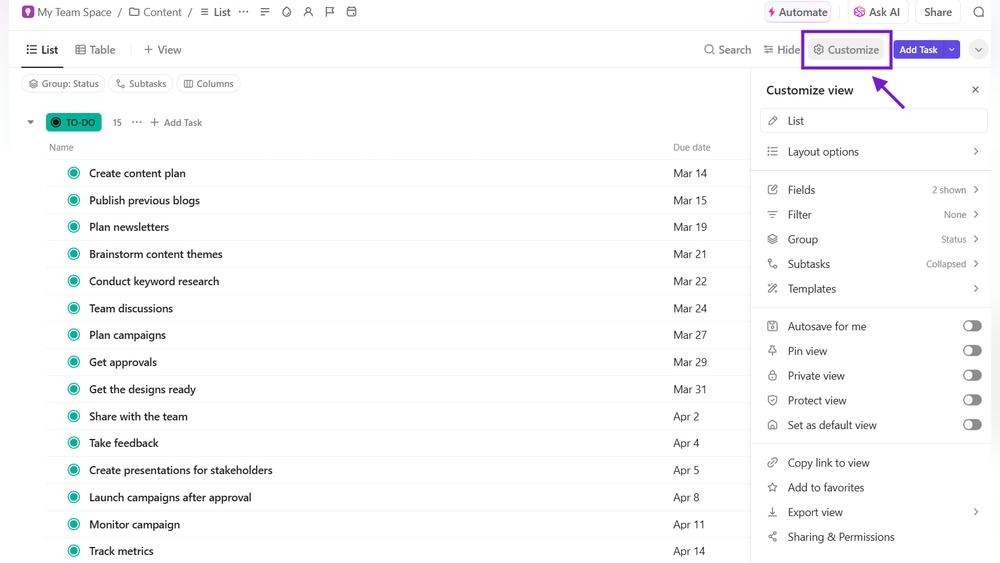
- Click the Customize button.
- From the dropdown menu, select Export.
This opens the export settings where you choose your preferences.
Choosing What Data To Export
ClickUp allows you to select specific data for export.
- Choose whether to export all tasks or filtered tasks only.
- Pick if you want to include time in status or other task details.
Selecting the right data ensures your Excel file contains exactly what you need.
Selecting The Appropriate File Format
ClickUp supports multiple export file formats.
- Excel (.xlsx) is best for editing and analysis in Microsoft Excel.
- CSV (.csv) works well for simple data or import into other programs.
Choose Excel format for a clean table with all features preserved.
Downloading And Saving The Exported File
After selecting your options, click the Download button.
Your file will be saved to your device, usually in the Downloads folder.
- Open the file with Excel to view and edit your table.
- Rename and move the file to a safe location if needed.
Now, your ClickUp table is ready to use in Excel.
Key Features Of Clickup’s Export Function
ClickUp’s export function offers flexible and powerful tools to move your data into Excel. It helps you take control of your tables and lists with ease. The export options let you decide what data to include and how to format it.
The function supports customization, making sure you get exactly the information you need. You can export tasks, statuses, and time data from different parts of your workspace. Both manual and automated export options are available to fit your workflow.
Customizing Visible Columns For Export
Before exporting, ClickUp allows you to choose which columns to include. This means you only export the data you want. You can add or remove columns in the List or Table view by clicking the Customize button.
This feature keeps your Excel file clean and relevant. It avoids clutter from unnecessary data, improving readability and analysis.
Including Time In Status Data
ClickUp lets you include Time in Status information in your exports. This data shows how long each task stayed in a specific status. Enable this option in the export settings to track task progress and bottlenecks.
Including time data helps in project management and performance review. It provides clear insight into task flow and delays.
Exporting From Different Spaces, Folders, Or Lists
You can export tables from any part of your ClickUp workspace. Whether it is a Space, Folder, or List, ClickUp supports exporting from all levels. Navigate to the desired location and open the List or Table view for export.
This flexibility allows you to handle data from broad projects or specific task groups. It fits various organizational structures and reporting needs.
Options For Manual Vs. Automated Exports
ClickUp supports both manual and automated exports. Manual export is done directly from the interface by clicking Export and downloading the file.
Automated export requires setting up integrations or using third-party tools. Automation saves time by regularly syncing ClickUp data with Excel without manual steps.
Choose manual for occasional exports and automated for frequent or large-scale data transfers.
Pricing And Affordability Considerations For Exporting
Exporting tables from ClickUp to Excel involves understanding the costs tied to different subscription plans. Pricing impacts which export features you can access and how much data you can export. Balancing your budget with your export needs helps decide whether upgrading is worth it.
Export Features Available In Free And Paid Plans
Free Plan offers basic export options, mainly allowing CSV exports of Lists and Tables. Excel export is possible but limited in advanced customization.
Paid Plans
- Direct export to Excel (.xlsx) with more formatting options
- Export including Time in Status data
- Bulk export for large or multiple lists
- Automated export through integrations or API access
Limitations On Exporting In Different Subscription Tiers
| Subscription Tier | Export Formats | Export Size Limits | Advanced Export Options |
|---|---|---|---|
| Free | CSV, basic Excel export | Up to 1000 rows per export | Not available |
| Unlimited & Business | CSV, Excel (.xlsx), PDF | Up to 10,000 rows | Time in Status, custom fields export |
| Enterprise | All formats plus API export | Unlimited rows | Full customization, scheduled exports |
Export limits in free plans can restrict large projects. Paid plans remove or increase these limits.
Cost-benefit Analysis Of Upgrading For Export Needs
Upgrading to a paid plan offers better export flexibility and capacity. It suits users managing large data or needing regular exports.
- Free Plan fits casual users with small exports.
- Unlimited/Business Plans add advanced export tools and higher limits.
- Enterprise Plan targets teams needing automation and large-scale exports.
Consider how often you export and the data size. Calculate extra cost against saved time and improved workflow.
“Pros And Cons Of Exporting Tables From Clickup To Excel
Exporting tables from ClickUp to Excel offers a practical way to analyze and share data offline. Many users appreciate the ability to manipulate tasks and project details in Excel’s familiar environment. Yet, this process also comes with some challenges that can affect workflow.
Understanding the advantages and limitations helps users decide the best method for exporting their ClickUp data. Below are key points to consider.
Advantages Of Using Clickup’s Native Export Functionality
- Simple and fast: Exporting tables directly from ClickUp takes just a few clicks.
- Multiple formats: Users can export in Excel (.xlsx), CSV, or other formats.
- Data accuracy: The export preserves task details, statuses, and custom fields.
- Easy sharing: Excel files can be shared and edited without ClickUp access.
- Time in Status option: Exports can include time tracking for task statuses.
Common Challenges And Limitations Encountered
- Formatting loss: Complex table layouts may not transfer perfectly.
- Large data sets: Exporting very large tables can be slow or cause errors.
- Missing attachments: Files and comments don’t export with the table.
- Limited customization: Users cannot fully control export content beyond preset options.
- Open file issues: Excel files must be closed before importing exported data.
Workarounds And Tips To Overcome Export Issues
- Break large tables: Export smaller sections to avoid slowdowns or crashes.
- Close Excel before export: Prevents conflicts when downloading and opening files.
- Use CSV format: CSV files are simpler and often avoid formatting problems.
- Manual adjustments: Edit Excel files after export to fix layout or add missing details.
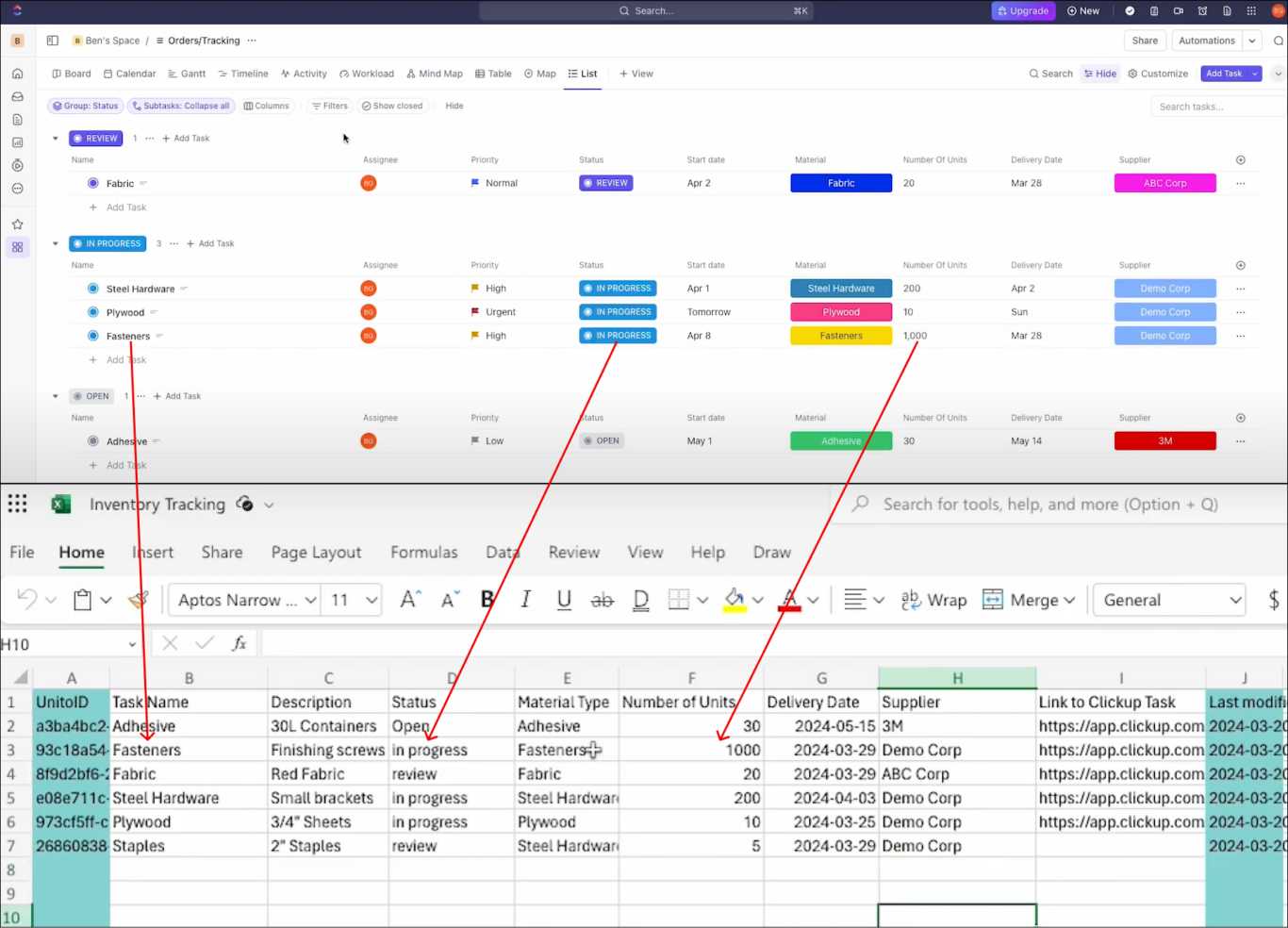
- Third-party tools: Consider apps or scripts that sync ClickUp data with Excel automatically.
Credit: unito.io
Advanced Methods And Tools For Exporting Clickup Data
Exporting tables from ClickUp to Excel can be done in basic ways, but advanced methods offer more power and flexibility. These methods help you automate data transfer, keep your Excel sheets updated, and manage large datasets easily. Using specialized tools and automation can save time and reduce errors.
Using Third-party Automation Tools Like Coupler.io
Coupler.io is a popular tool for automating data exports from ClickUp to Excel. It connects directly to your ClickUp account and pulls data without manual downloads.
- Connect Coupler.io to your ClickUp workspace using API keys.
- Select the ClickUp List or Table you want to export.
- Choose Excel as the destination file format.
- Configure data fields and filters to export only the needed information.
This method helps export large tables quickly and reduces manual steps. It also supports exporting data from multiple ClickUp spaces or projects in one go.
Setting Up Scheduled And Automatic Data Refreshes
Automate your exports with scheduled data refreshes. This keeps your Excel files updated with the latest ClickUp data regularly.
- Use Coupler.io or similar automation tools.
- Set the refresh interval, such as hourly, daily, or weekly.
- Enable notifications to alert you when exports complete or fail.
Scheduled refreshes avoid repetitive manual exports. They ensure your Excel reports always show current project status and task details.
Syncing Clickup Data With Excel For Real-time Updates
Real-time syncing is useful for teams that need instant updates between ClickUp and Excel.
With real-time sync, changes in ClickUp automatically appear in your Excel workbook, and vice versa in some cases.
- Use integration platforms like Zapier or Integromat alongside Coupler.io.
- Configure triggers based on task updates, status changes, or new comments.
- Set actions to update Excel tables instantly when ClickUp data changes.
This setup helps maintain consistent data across tools. It reduces errors caused by outdated information in Excel reports.
Recommendations For Ideal Users And Use Cases
Exporting tables from ClickUp to Excel suits specific users and tasks. Knowing who gains the most helps boost efficiency. Different roles and scenarios benefit differently from this feature.
Who Benefits Most From Exporting Clickup Tables To Excel
- Project Managers who track task progress and budgets.
- Data Analysts needing detailed data manipulation and reporting.
- Team Leads coordinating multiple projects and timelines.
- Finance Professionals managing project costs and invoicing.
- Consultants preparing client reports from project data.
These users need data outside ClickUp for advanced analysis or sharing.
Best Practices For Project Managers And Data Analysts
- Choose the right view: Export from List or Table views for clear data layout.
- Customize columns: Select only relevant fields before export to keep files manageable.
- Use filters: Export filtered data for focused reports.
- Verify data integrity: Check exported files for completeness and accuracy.
- Schedule regular exports: Keep Excel files updated for ongoing analysis.
Following these steps ensures smooth data transition and reduces errors.
Scenarios Where Exporting Enhances Productivity
| Scenario | How Exporting Helps |
|---|---|
| Monthly Reporting | Create detailed Excel reports from ClickUp tasks quickly. |
| Budget Tracking | Analyze costs and expenses using Excel formulas and charts. |
| Data Backup | Keep offline copies of project data for security and audits. |
| Advanced Data Analysis | Use Excel’s pivot tables and functions for deeper insights. |
| Client Presentations | Export clean data tables for inclusion in reports or slides. |
Exporting supports tasks requiring offline access or enhanced data tools.
Conclusion And Final Tips For Exporting Clickup Tables
Exporting tables from ClickUp to Excel helps organize and analyze your data easily. Following clear steps ensures a smooth export process. Using ClickUp’s built-in features saves time and effort in data handling. Keep in mind some final tips to improve your workflow and data management.
Summary Of Key Export Steps And Features
- Navigate to the List or Table view you want to export.
- Click Customize in the upper-right corner of the view.
- Select Export from the dropdown menu.
- Choose the file format (Excel or CSV) for export.
- Optionally, adjust Time in Status preferences if relevant.
- Click Download to save the file locally.
These steps are simple and available in all ClickUp plans, making data export accessible.
| Feature | Benefit |
|---|---|
| Export Formats | Choose Excel or CSV to suit your needs. |
| Customize Export | Include specific fields and time data. |
| Direct Download | Quick access to exported files without extra tools. |
Additional Resources And Tutorials
Access tutorials from ClickUp’s official site or trusted YouTube creators. They provide step-by-step guidance on exporting tables. These resources cover:
- Exporting without upgrading to premium plans
- Syncing ClickUp data with Excel manually
- Handling large datasets effectively
Watching video tutorials helps visualize the process and avoid common mistakes.
Encouragement For Efficient Data Management
Regularly exporting ClickUp tables keeps your data safe and accessible. Organize exports by date or project to find files quickly. Use Excel tools like filters and formulas to analyze data better.
Efficient data management saves time and improves productivity. Keep your exports consistent for better tracking and reporting. Trust ClickUp’s export features to simplify your workflow.
Frequently Asked Questions
How Do I Export A Table From Clickup?
To export a table from ClickUp, open the desired List or Table view. Click “Customize” in the upper-right corner, then select “Export. ” Choose your file format and export options, then click “Download” to save the table to your device.
How Do I Export Data From Clickup To Excel?
To export data from ClickUp to Excel, open your List or Table view. Click Customize, then Export. Choose Excel as the file format and click Download.
How Do I Export Table Data To Excel?
To export table data to Excel, open the table view, click the menu or Customize option, select Export, choose Excel format, then download the file.
How Do I Transfer A Table Into Excel?
Select the table in your source document and press CTRL+C to copy it. Open Excel, click the desired cell, and press CTRL+V to paste the table. Adjust formatting if needed. This transfers your table accurately into Excel for further editing or analysis.
Conclusion
Exporting a table from ClickUp to Excel is simple and quick. Just follow the steps to customize, export, and download your data. This process helps you manage and analyze your tasks outside ClickUp easily. Using Excel with your ClickUp tables adds flexibility to your workflow. Try it yourself to see how it fits your needs. Learn more about ClickUp and boost your productivity by visiting ClickUp here.