Are you wondering if ClickUp has a client portal that can simplify how you share project updates with your clients? Managing multiple clients and keeping them informed can be a challenge, but what if you could centralize all communications, files, and progress reports in one easy-to-use space?
ClickUp offers customizable client dashboards that let you control exactly what your clients see, making collaboration smooth and transparent. If you want to boost your productivity and keep your clients happy without juggling multiple apps, this article will show you how ClickUp can become your go-to client portal solution. Ready to explore? Check out ClickUp here and see how it can transform your workflow: ClickUp Client Portal.
Introduction To Clickup And Its Client Portal Capabilities
ClickUp is a popular productivity platform designed to replace multiple apps with one simple tool. It helps teams and individuals manage projects, tasks, and workflows in one place. Many businesses want to know if ClickUp offers a client portal to share project updates and collaborate with clients easily.
This section explains what ClickUp is, what a client portal means, and whether ClickUp has a native client portal feature.
What Is Clickup? An Overview Of The Platform
ClickUp is a cloud-based project management and productivity platform. It combines many tools into one interface, including task management, docs, goals, chat, and reporting.
- Organizes work with tasks, lists, boards, and calendars
- Customizable views for different workflows
- Integrates with many apps like Google Drive, Slack, and Zoom
- Offers automation to reduce repetitive work
- Supports teams of all sizes, from freelancers to enterprises
ClickUp aims to maximize productivity by unifying apps, AI, and human collaboration.
Understanding Client Portals: Definition And Purpose
A client portal is a secure online space where clients can view project details and updates. It helps improve communication and transparency.
Benefits of client portals:
- Clients see real-time progress without email overload
- Central place for files, messages, and deadlines
- Controlled access to sensitive information
- Builds trust and better client relationships
Client portals reduce confusion and save time for both teams and clients.
Does Clickup Have A Native Client Portal?
ClickUp offers client portals also called client dashboards, which provide dedicated spaces for clients.
Key features include:
| Feature | Description |
|---|---|
| Customizable Permissions | Control what clients can view and access |
| Project Updates | Clients see real-time task progress and milestones |
| File Sharing | Upload and share relevant documents securely |
| Collaboration Tools | Comments and messaging within the portal |
| Branding Options | Customize look to match your brand style |
This setup makes ClickUp a strong option for managing client communication inside the project workspace.
Credit: contentsnare.com
Key Features Of Clickup’s Client Portal Functionality
ClickUp’s client portal offers powerful tools to improve communication and collaboration. It provides a dedicated space where clients can track project progress easily. The features focus on flexibility, security, and transparency. These elements help teams share updates and control client access effectively.
Customizable Client Dashboards: Tailoring Access And Views
ClickUp allows creation of custom dashboards for each client. These dashboards show only relevant information. Teams can choose which tasks, projects, or reports clients see. The layout can be adjusted to highlight important data.
- Display project status and deadlines
- Show task lists or timelines
- Include charts or progress bars
This customization ensures clients get clear, focused insights without overload.
Permission Controls: Managing What Clients Can See
Robust permission controls let teams decide client access levels. You can restrict sensitive data while sharing necessary updates. Permissions apply to tasks, comments, and files.
| Permission Type | Description |
|---|---|
| View Only | Clients can see tasks and updates but cannot edit |
| Comment Access | Clients can add comments on tasks and documents |
| Edit Access | Clients can modify tasks if granted permission |
These controls protect project integrity and maintain client privacy.
Centralized Project Updates: Keeping Clients Informed
Clients receive real-time updates on project progress. ClickUp centralizes communication in one place. Clients see task completions, status changes, and important notes quickly.
- Automatic notifications on task updates
- Summary views of project milestones
- Clear timelines and deadlines
This keeps clients engaged and reduces the need for status meetings.
Integration With Docs And Analytics For Enhanced Transparency
The portal connects with ClickUp’s Docs and Analytics. Clients access project documents and detailed reports easily. Analytics show performance metrics and progress trends.
- Shared documents for contracts or plans
- Visual reports on task completion rates
- Insights into team productivity and timelines
These features build trust by showing clear data and information.
Guest Access: Inviting Clients Without Full User Accounts
ClickUp supports guest access for clients. Guests join without needing full user accounts. This simplifies client onboarding and reduces costs.
- Invite clients via email
- Control guest permissions carefully
- Guests see only assigned tasks and projects
This flexibility suits teams managing multiple clients with varying access needs.
How To Create And Use A Client Portal In Clickup
Creating a client portal in ClickUp helps share project updates clearly. It builds trust and keeps clients informed without extra emails. This section guides you to set up a client portal step-by-step.
Step-by-step Guide To Building A Client Dashboard
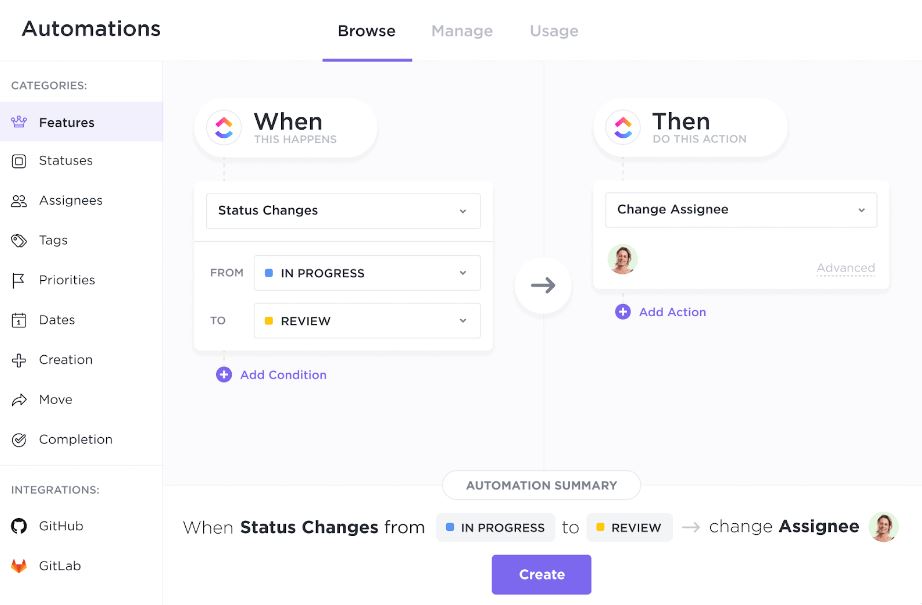
Start by creating a new Dashboard in ClickUp. This dashboard will be your client portal.
- Go to the Dashboards section and click
+ New Dashboard. - Name the dashboard clearly, e.g., Client Name Portal.
- Add widgets like tasks, timelines, and charts to show project progress.
- Arrange widgets to highlight the most important updates.
- Save the dashboard and prepare to share it.
The dashboard acts as a control center for your client to view updates easily.
Setting Up Public Views And Shared Documents
Public views let clients see only the information you choose.
- Create a List or Board View in your project space.
- Click
Shareand enablePublic Sharingto generate a link. - Adjust permissions so clients can only view, not edit tasks.
- Share important documents by uploading them in Docs and linking them to the dashboard.
This keeps your client informed without exposing sensitive data.
Embedding Progress Reports And Deliverables
Embed reports and deliverables in the dashboard to track project status.
- Use the
Embedwidget to add files or external reports. - Link task progress widgets that update automatically.
- Include charts that show completed tasks and deadlines.
- Upload deliverables to Docs or attach them directly to tasks.
This setup helps clients monitor the work without constant check-ins.
Organizing Resources And Quick Links For Clients
Make navigation easy by grouping resources and links.
- Create a section in the dashboard for Resources.
- Add quick links to FAQs, contracts, or support pages.
- Use
Textwidgets for brief instructions or contact info. - Keep everything clear and simple to reduce client questions.
Best Practices For Sharing Meeting Notes And Analytics
Keep clients updated with notes and performance data.
- Store meeting notes in ClickUp Docs linked to the dashboard.
- Use the
Commentssection for follow-ups and clarifications. - Include analytic widgets showing task completion rates and timelines.
- Schedule regular updates by refreshing dashboard content.
Consistent sharing builds client confidence and streamlines communication.
.png)
Credit: stackset.com
Pricing And Affordability Of Clickup For Client Portal Use
ClickUp offers flexible pricing plans that suit client portal needs. Its affordability makes it a strong choice for businesses managing clients and projects. Understanding these plans helps in choosing the right option for efficient client management.
Overview Of Clickup Pricing Plans Relevant To Client Portals
ClickUp has several pricing tiers that impact client portal features:
| Plan | Price (per user/month) | Key Features for Client Portals |
|---|---|---|
| Free | $0 | Unlimited tasks, 100MB storage, basic views, limited guests |
| Unlimited | $5 | Unlimited storage, unlimited guests, integrations, time tracking |
| Business | $12 | Advanced permissions, custom exporting, goals, portfolios |
| Business Plus | $19 | Advanced time tracking, custom role creation, priority support |
Client portal use usually benefits from Unlimited or Business plans for better control and storage.
Cost-benefit Analysis Compared To Dedicated Client Portal Software
Dedicated client portal software often costs more than ClickUp plans.
- ClickUp combines project management and client portals in one tool.
- Reduces need for multiple subscriptions, cutting overall costs.
- Offers strong customization to fit client communication needs.
- Some dedicated portals have white-labeling, which ClickUp lacks.
ClickUp delivers solid value, especially for small to mid-size teams.
Free Vs Paid Features: What’s Included For Client Management
The free ClickUp plan supports client management but with limits:
- Invite guests with limited access.
- Basic task and project views.
- Storage capped at 100MB.
- No advanced permission controls.
Paid plans add:
- Unlimited guests for client collaboration.
- Custom permissions to control client data visibility.
- More storage and integrations.
- Time tracking and reporting tools.
Scaling Client Portals With Team Size And Project Complexity
ClickUp scales well as teams and projects grow.
- Small teams can use free or Unlimited plans for basic client portals.
- Mid-size teams benefit from Business plan features like advanced permissions.
- Large teams or complex projects may need Business Plus for custom roles.
- Project complexity demands better storage, tracking, and control.
Adjust plans as client needs and project demands increase.
Pros And Cons Of Using Clickup As A Client Portal
ClickUp offers a versatile platform that many use as a client portal. It combines project management, communication, and document sharing in one place. Users benefit from its flexibility but face some challenges. Below, we explore the key advantages and limitations of ClickUp as a client portal.
Advantages: Customization, Centralization, And Collaboration
Customization stands out as a major plus. ClickUp allows you to tailor client dashboards to show only relevant information. You control user permissions, so clients see what matters most. This helps keep data secure and focused.
Centralization is another strength. All projects, tasks, and files are stored in one platform. This reduces the need to switch between apps. Clients and teams access updates easily in real time.
Collaboration is seamless with ClickUp. Clients can comment, attach files, and track progress directly. This builds clear communication and faster decision-making.
Limitations: Need For Client Invitations And Learning Curve
- Clients must be invited and granted access, which can delay onboarding.
- New users often face a learning curve due to ClickUp’s many features.
- Some clients may find the interface complex compared to simpler portals.
- Setting up permissions correctly requires careful attention to avoid data leaks.
Comparison With Dedicated Client Portal Solutions
| Feature | ClickUp | Dedicated Client Portals |
|---|---|---|
| Customization | High, flexible dashboards and permissions | Often fully white-labeled with branding options |
| Centralization | Combines project management and communication | Focuses mainly on client access and document sharing |
| Ease of Use | Moderate; requires training | Usually simpler, designed for client use only |
| Cost | Included in broader ClickUp plans | May charge extra for full client portal features |
Real-world User Experiences And Feedback
Users appreciate ClickUp’s ability to keep teams and clients on the same page. Many highlight the strong collaboration tools and centralized updates. Clients enjoy receiving clear project snapshots.
On the downside, some users report challenges with onboarding clients quickly. The platform’s complexity can slow initial adoption. A few mention the need for better client-specific tutorials or guides.
Overall, ClickUp works well for teams ready to invest time in setup. It suits those wanting an all-in-one system rather than a simple client portal.
Credit: contentsnare.com
Who Should Use Clickup’s Client Portal And When
ClickUp’s Client Portal offers a centralized space for clients to track project progress. It allows control over what clients see through customizable permissions. This feature suits various users and scenarios who want clear communication and project transparency.
Ideal Users: Freelancers, Agencies, And Small Businesses
Freelancers benefit from ClickUp’s Client Portal by sharing updates without overwhelming clients with details. It helps keep communication simple and focused.
Agencies can manage multiple clients easily, providing each with a dedicated view of their projects. This reduces email back-and-forth and improves client trust.
Small businesses find value in keeping internal teams and clients aligned. The portal supports collaboration and timely feedback.
Scenarios Where Clickup Client Portals Excel
- Projects needing regular client updates without sharing full internal workflows.
- Teams managing multiple clients with distinct project timelines.
- Clients requiring read-only access for transparency and progress checks.
- Workflows where task comments and files must be shared securely.
ClickUp’s permission settings make it easy to tailor what each client sees.
When To Consider Alternative Or Supplementary Client Portal Tools
ClickUp’s portal suits many users but may lack advanced branding or customization features.
Consider other tools if:
- Full white-labeling is required to match client branding exactly.
- Clients need extensive document management or e-signature options.
- Industry-specific compliance and security features are mandatory.
- A simpler, standalone portal is preferred over integrated project management.
Tips For Maximizing Efficiency And Client Satisfaction
- Set clear permissions to control client access and avoid confusion.
- Use automated notifications to keep clients updated on key milestones.
- Organize tasks and files clearly within the portal for easy navigation.
- Encourage clients to comment directly in the portal to centralize communication.
- Regularly review what clients see and update permissions as projects evolve.
Conclusion: Is Clickup The Right Client Portal Solution For You?
ClickUp offers a flexible client portal feature that helps teams share project updates with clients. It allows customized access, so clients see only the information you allow. This makes managing multiple clients easier and more organized.
Summary Of Clickup’s Client Portal Strengths And Weaknesses
| Strengths | Weaknesses |
|---|---|
|
|
Final Recommendations Based On User Needs
Choose ClickUp’s client portal if you want an all-in-one productivity tool with client access. It fits teams needing centralized project management plus client communication.
Consider other options if you require:
- Full white-labeling for client portals
- Advanced portal customization
- A simpler, dedicated client portal solution
ClickUp suits small to medium teams that want a single platform to handle tasks and client updates.
Next Steps For Implementing A Client Portal In Clickup
- Set up client spaces: Create dedicated folders or dashboards for each client.
- Configure permissions: Adjust access rights so clients see only relevant info.
- Integrate communications: Use comments and attachments to keep clients informed.
- Train your team: Ensure everyone knows how to update and share client info.
- Collect client feedback: Improve the portal experience based on their input.
Start small by adding one client portal, then expand as your team grows comfortable. This approach helps avoid confusion and keeps client management smooth.
Frequently Asked Questions
Does Clickup Have A Customer Portal?
Yes, ClickUp offers client portals called client dashboards. They provide secure, customizable spaces for clients to access project updates and collaborate efficiently.
How To Manage Clients In Clickup?
Manage clients in ClickUp by creating client dashboards, assigning guest access, and customizing permissions for project visibility. Centralize tasks, set clear expectations, and communicate regularly to keep clients updated and organized efficiently.
What Is The Best Client Portal?
The best client portal offers secure, customizable access for clients to view projects, invoices, and communications. Popular options include ClickUp, Clinked, Zendesk, and SuiteDash. Choose a portal that fits your business needs and enhances client collaboration efficiently.
What Is My Client Portal?
A client portal is a secure online space where clients access invoices, appointments, forms, and communications easily.
Conclusion
ClickUp offers a way to create client portals through custom dashboards. Clients can access project updates by being invited as guests. You control what clients see with customizable permissions. This setup helps keep communication clear and projects organized. It suits teams wanting a simple client access point within their workflow. Explore how ClickUp fits your needs by visiting this link. Managing clients and projects in one place saves time and reduces confusion. Try it to see how it supports your productivity.